Getting Started
Welcome to sine~! This guide will help you set up the app and start using AI assistants on your mobile device.
1. Download the App
sine~ is available for iOS and Android. Download from your device's app store.
2. Add a Provider
Open the app and navigate to Settings → Providers. You only need one provider to get started—pick whichever you prefer:
- Anthropic - console.anthropic.com
- OpenAI - platform.openai.com
- Google - aistudio.google.com
- xAI - console.x.ai
Note: You can add multiple providers later if you want to compare models or have backups.
3. Start a Conversation
Return to the chat screen and tap the model selector to choose your preferred model. Type your message and send!
Tip: You can switch models mid-conversation. The new model will have access to the conversation history.
LLM Providers
Connect to AI providers using your own API keys. You only need one provider to get started.
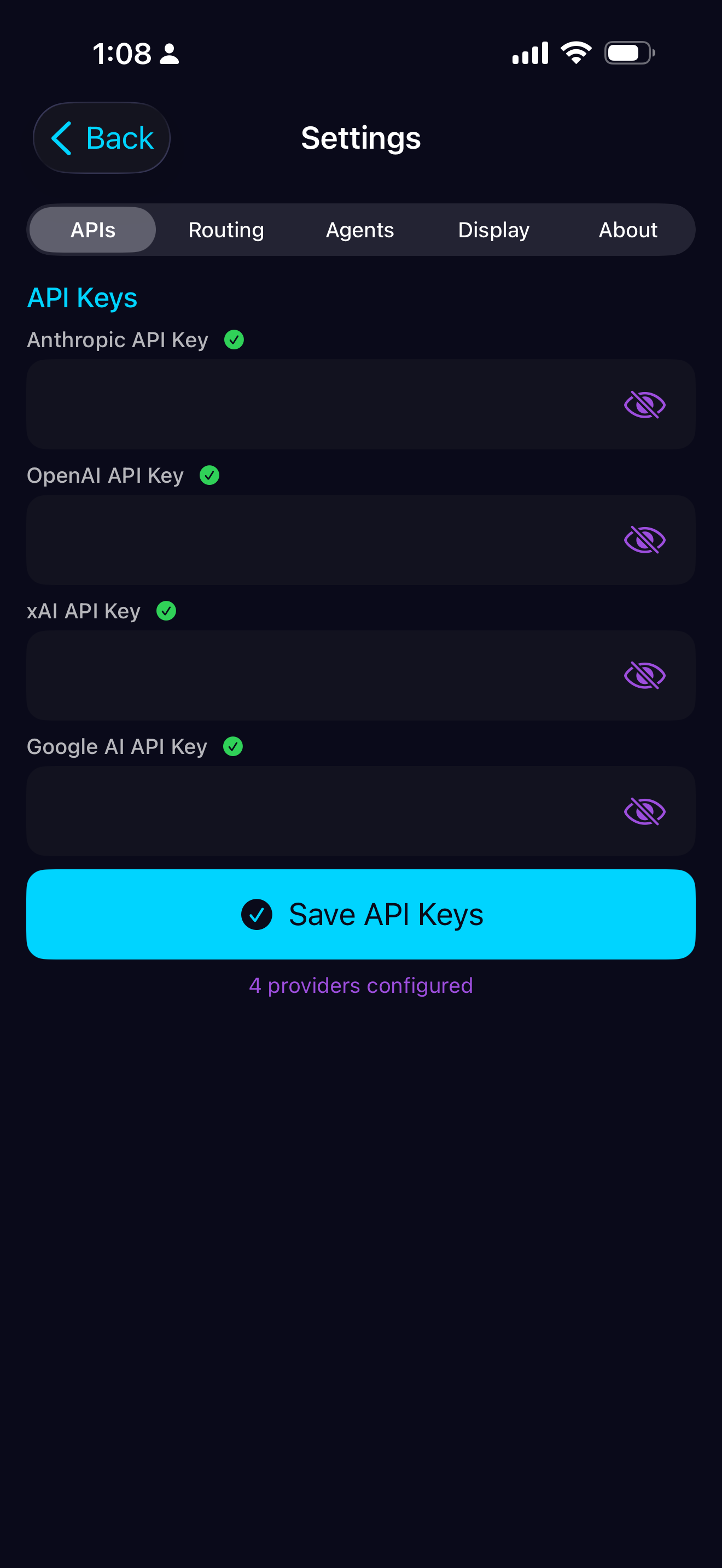
Setup
Anthropic (Claude)
- Get API key at console.anthropic.com
- In sine~: Settings → Providers → Anthropic
- Paste your key
Models: Claude Opus 4.5 (most capable), Claude Sonnet 4 (fast, capable), Claude Haiku 3.5 (fastest, cheapest)
OpenAI (GPT)
- Get API key at platform.openai.com
- In sine~: Settings → Providers → OpenAI
- Paste your key
Models: GPT-4o (fast, multimodal), GPT-4 Turbo, o1-preview (reasoning), o1-mini (fast reasoning)
Google (Gemini)
- Get API key at aistudio.google.com
- In sine~: Settings → Providers → Google
- Paste your key
Models: Gemini 2.5 Pro (most capable), Gemini 2.5 Flash (fast), Gemini 2.0 Flash (fast, vision)
xAI (Grok)
- Get API key at console.x.ai
- In sine~: Settings → Providers → xAI
- Paste your key
Models: Grok 3 (most capable), Grok 3 Mini (fast)
Switching Models
Tap the model name at the top of any chat to open the model picker. Select a different model and continue the conversation—the new model sees the full history.
When to Use Which
Quick questions
Use Haiku, Gemini Flash, or Grok Mini for speed and lower cost
Complex reasoning
Use Claude Opus 4.5, GPT-4o, or Gemini 2.5 Pro for difficult problems
Current information
Use a web search agent (Tavily, Kagi) for current information
Second opinions
Switch models mid-conversation to compare answers
Security: API keys are encrypted on-device (Keychain on iOS, EncryptedSharedPreferences on Android) and sent directly to the AI providers you choose.
Agents
Agents extend your AI with capabilities like code execution, web search, and file analysis. Each serves a different purpose.
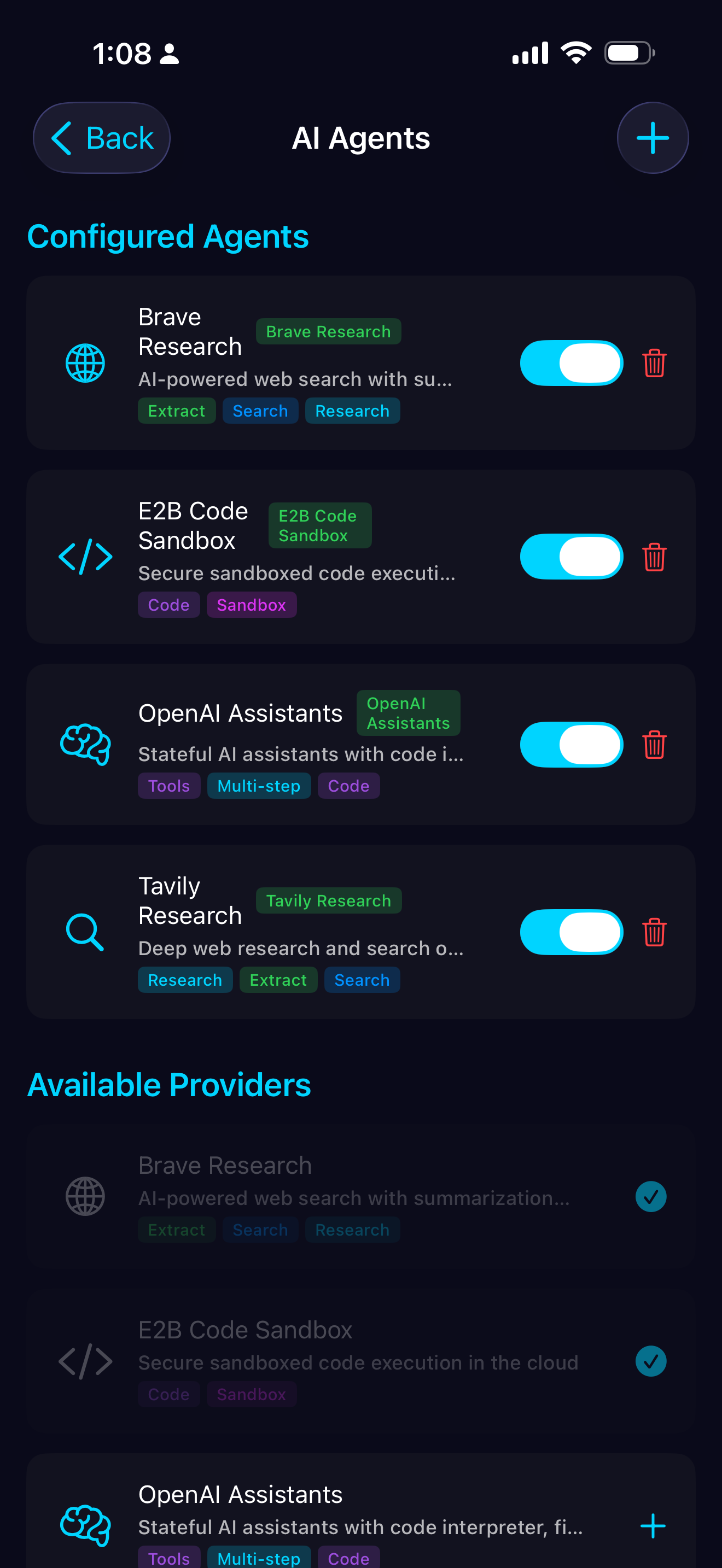
E2B Code Execution
Run Python, JavaScript, or TypeScript in secure cloud sandboxes. Best for calculations, data analysis, and generating visualizations.
Setup
- Get API key at e2b.dev
- Settings → Agents → Add → E2B Code Execution
How to Use
Just ask. The AI writes and runs code automatically:
- "Calculate compound interest on $10k at 5% for 10 years"
- "Fetch Bitcoin price and show me a chart"
- "Generate a QR code for this URL"
Best For
Math, data visualization, API calls, file generation, anything requiring computation.
Pricing
E2B bills per second of sandbox runtime. Note: sine~ makes an additional API call to check for generated files, which may extend the sandbox lifecycle by a few hundred milliseconds. See e2b.dev/pricing for details.
OpenAI Assistants
Code Interpreter powered by OpenAI's Assistants API. Runs Python in OpenAI's secure environment.
Note: Currently only Code Interpreter is supported. File Search and other Assistant tools are not yet available.
Setup
- Uses your OpenAI API key (no extra key needed)
- Settings → Agents → Add → OpenAI Assistants
- Enable Code Interpreter
How to Use
Ask for code execution tasks:
- "Analyze this data and create a chart"
- "Run this Python calculation"
- "Generate a visualization"
E2B vs OpenAI Assistants
E2B: Python, JS, TypeScript with npm packages. OpenAI: Python only, tighter GPT integration.
Tavily Search
AI-optimized web search. Returns structured, relevant results designed for LLMs.
Setup
- Get API key at tavily.com
- Settings → Agents → Add → Tavily Search
How to Use
Ask questions needing current information:
- "What's the latest on [news topic]?"
- "Current iPhone 16 specs and price"
- "Recent research on [subject]"
Best For
Current events, product info, research, anything requiring up-to-date information.
Brave Search
Privacy-focused web search with AI-powered summarization. No tracking, independent index.
Setup
- Get an AI Pro API key at brave.com/search/api
- ⚠️ Important: You need the "AI Pro" plan, not the basic "Data for Search" plan
- Settings → Agents → Add → Brave Search
How to Use
Same as Tavily—ask questions requiring web search. The AI decides when to search.
Tavily vs Brave
Tavily: Better AI-optimized results, structured data. Brave: More privacy-focused, independent index.
Managing Agents
Go to Settings → Agents to enable/disable agents, update API keys, or remove agents. Enabled agents are available in all conversations.
MCP Servers
Model Context Protocol (MCP) servers extend your AI with custom tools—calendar access, database queries, messaging, and more.
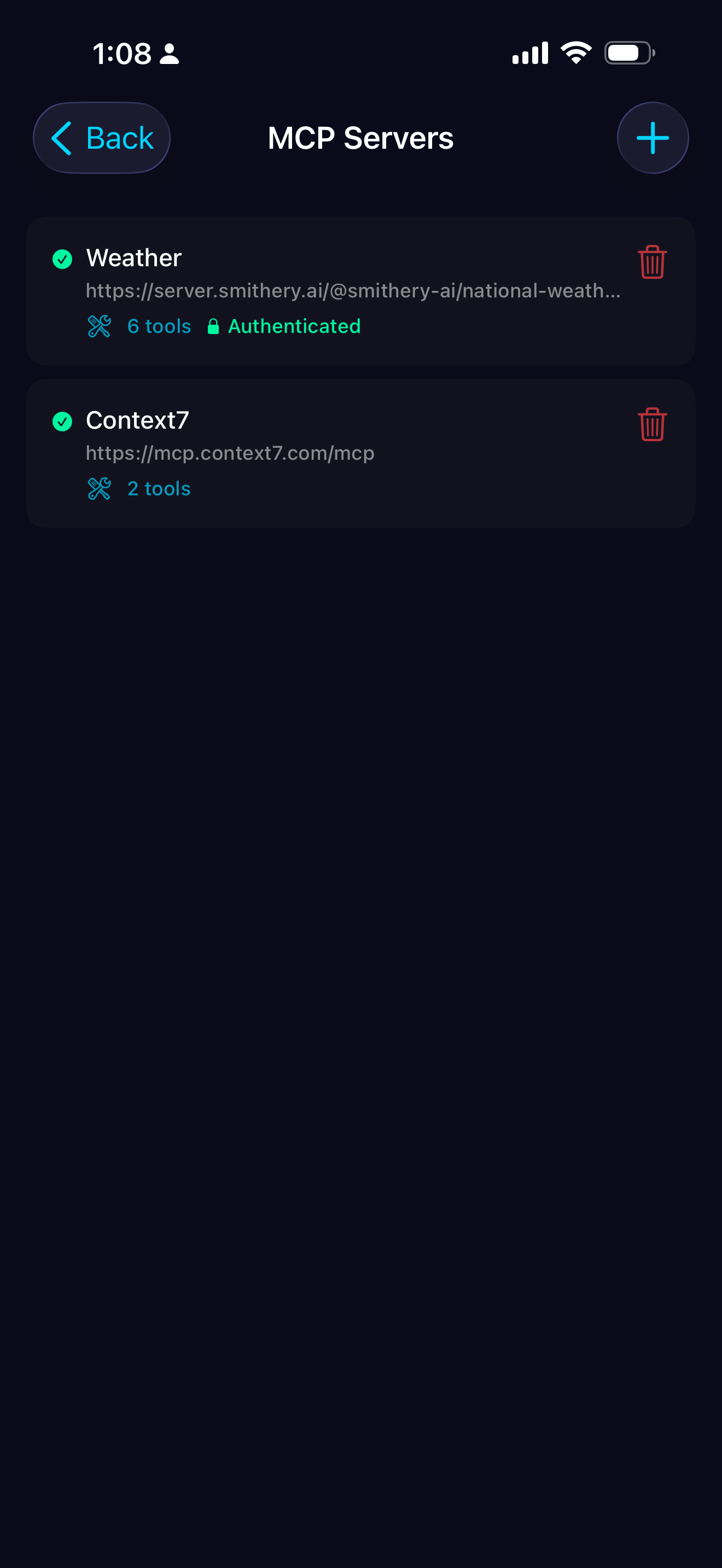
Setup
- Go to Settings → MCP Servers → Add Server
- Enter the server URL (e.g.,
https://server.smithery.ai/@yourserver) - sine~ connects and discovers available tools
- If authentication is required, you'll be prompted (see OAuth below)
OAuth Authentication
Many MCP servers require OAuth to access your data (e.g., Google Calendar, Slack, GitHub). sine~ handles this securely:
- Add the server - sine~ detects if OAuth is required
- Tap "Authenticate" - Opens the service's login page in a secure browser
- Log in & authorize - Grant sine~ access to the specific permissions the MCP server needs
- Automatic redirect - You're returned to sine~ with the connection complete
How it works: OAuth tokens are stored securely on your device (Keychain/EncryptedSharedPreferences). sine~ never sees your passwords—you log in directly with the service (Google, Slack, etc.). Tokens can be revoked anytime from the service's security settings.
Token expiration: If a token expires, you'll see an "Authenticate" button on the server. Tap it to re-authorize—your tools will work again immediately.
Using MCP Tools
Just describe what you want. The AI knows which tools are available and uses them automatically:
- "What's on my calendar tomorrow?"
- "Send a Slack message to #general"
- "Query the database for recent orders"
- "Create a new GitHub issue"
Finding Servers
Browse available MCP servers at smithery.ai. Popular servers include integrations for Google Calendar, Slack, GitHub, databases, and more.
Managing Servers
Go to Settings → MCP Servers to view connected servers, re-authenticate, or remove servers.
Trust: MCP servers run their own code. Only connect to servers you trust. Check their privacy policies.
Skills
Skills are reusable AI configurations that customize behavior for specific tasks. sine~ includes built-in skills and lets you create your own.
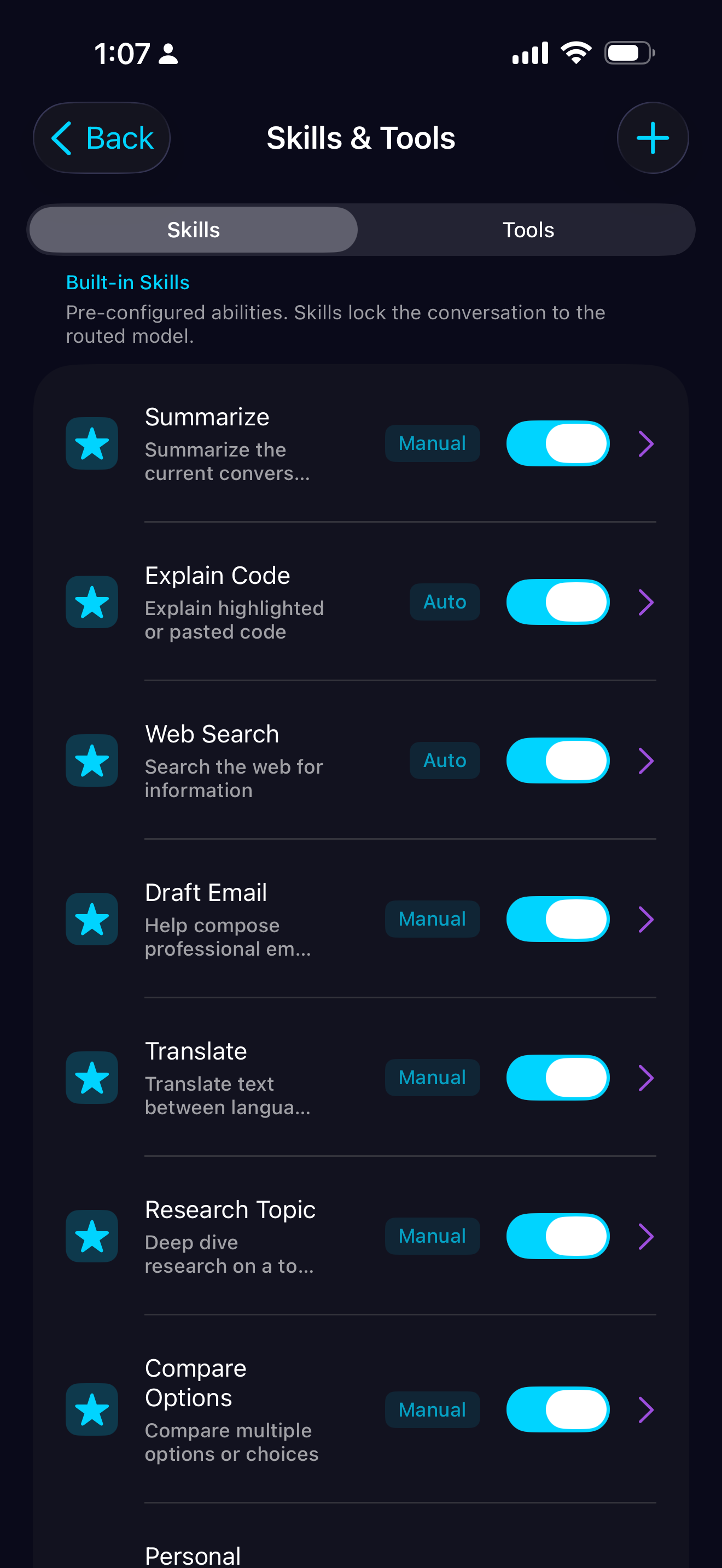
Built-in Skills
These skills are ready to use out of the box:
Daily Briefing
Personalized news and information based on your interests (uses web search)
Web Search
Search the web for current information
Research
Deep research on any topic with web search
Summarize
Summarize conversations or documents
Explain Code
Get clear explanations of code snippets
Draft Email
Compose professional emails
Translate
Translate text between languages
Compare
Compare options with pros/cons analysis
Personal Guidance
Thoughtful advice on personal decisions
Using a Skill
- Tap the sparkle icon in the chat input area
- Choose a skill from the list (built-in or custom)
- The skill's behavior applies to your conversation
- A banner shows which skill is active—tap X to deactivate
Skill Sessions: When you use a skill, sine~ locks the conversation to a capable model for that task. This ensures consistent behavior throughout the conversation.
Creating Custom Skills
- Go to Settings → Skills → Add Skill
- Enter a name and description
- Write a system prompt that defines the AI's behavior
- Save—your skill appears in the skill picker
Custom Skill Examples
Code Reviewer
Prompt:
"You are a senior engineer. Review code for security issues, performance, and best practices. Be constructive but thorough."
Writing Coach
Prompt:
"You help improve writing. Focus on clarity, structure, and tone. Suggest edits, don't rewrite entirely."
Socratic Tutor
Prompt:
"Help me learn by asking questions rather than giving answers directly. Guide me to discover solutions myself."
Devil's Advocate
Prompt:
"Challenge my ideas constructively. Find weaknesses in my arguments and suggest counter-perspectives I might have missed."
Memory
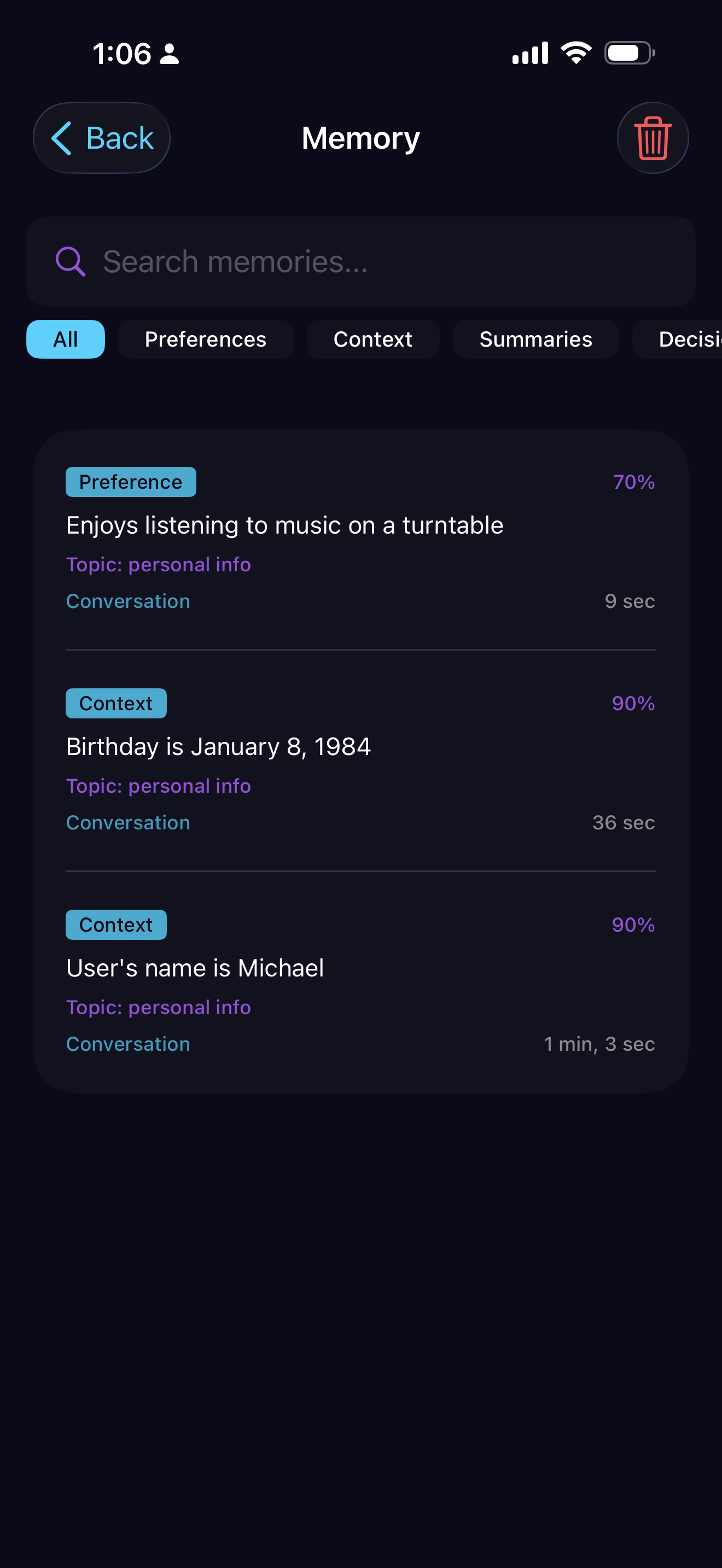
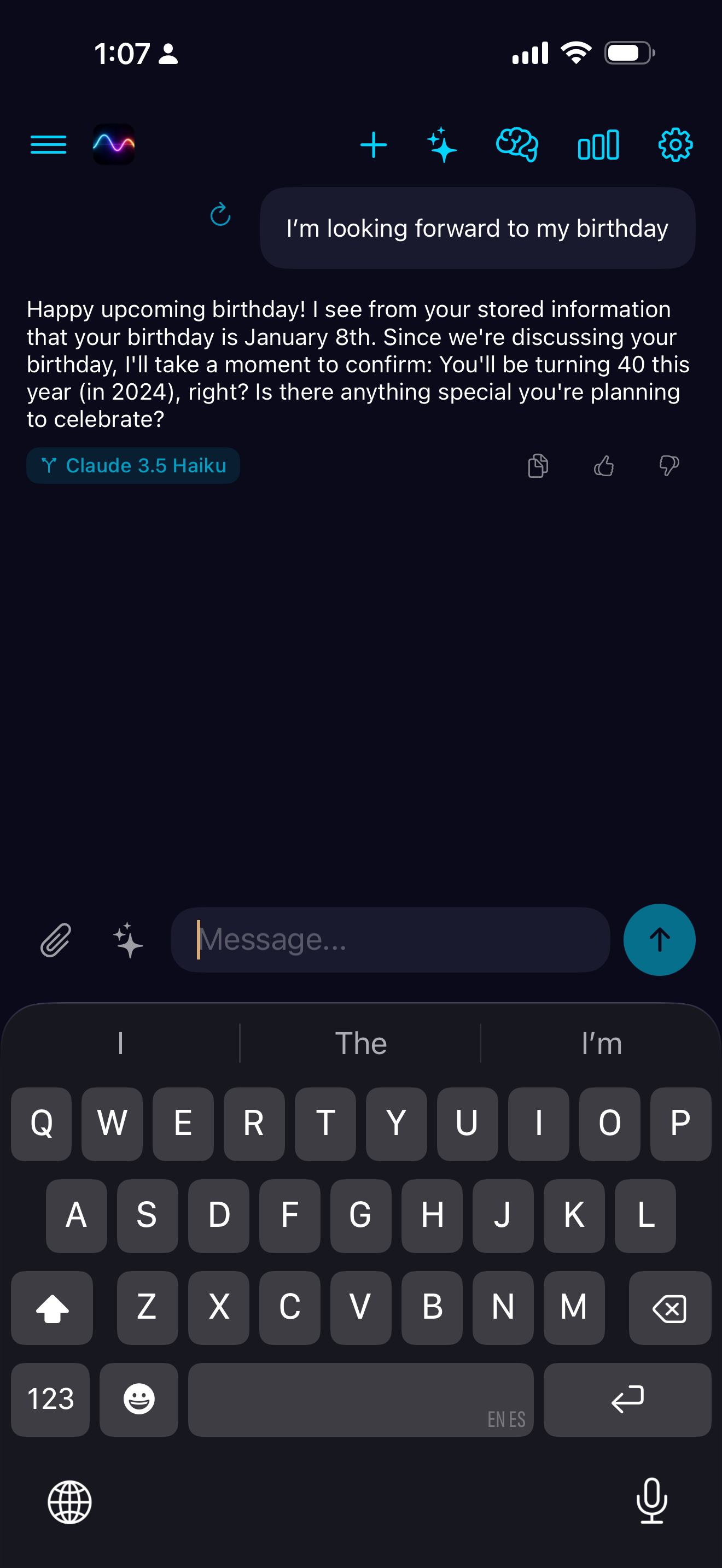
sine~ learns about you over time. The memory system extracts facts, preferences, and key information from your conversations and uses semantic search to recall them when relevant.
How It Works
After conversations, sine~ automatically extracts important information—your preferences, decisions, facts you've shared, and topics you care about. This knowledge is stored locally and retrieved using semantic search when relevant to future chats.
Using Memory
The AI naturally recalls what it knows about you:
- "What's my preferred coding style?"
- "Remember my project requirements"
- "Use my usual formatting preferences"
- "What do you remember about my preferences?"
Privacy
All memory data is stored locally on your device, encrypted. Semantic search uses on-device embedding—your memories are never sent to external services.
Secure Files
sine~ securely stores files generated by AI agents and files you share with the app. All stored files are encrypted with AES-256-GCM using platform-secure key storage (Keystore on Android, Keychain on iOS).
How It Works
When agents generate files (E2B code execution, OpenAI Assistants), they're automatically saved to encrypted local storage. Files you share to the app are also stored securely. Access your files anytime from the Files screen.
File Sources
- E2B - Charts, data files, and outputs from code execution
- OpenAI Assistants - Files created by custom assistants
- Shared - Files you share to sine~ from other apps
- Uploaded - Files you attach directly in conversations
Using the Secure Files Browser
From the Secure Files screen you can:
- Search files by name
- Filter by type (images, documents, text) or source
- Preview images and file details
- Download files to your device's Downloads folder
- Share files to other apps
- Delete individual files or clear all
Privacy & Security
Files are encrypted at rest using AES-256-GCM with keys stored in your device's secure enclave (Keystore/Keychain). Only sine~ can decrypt them, and they never leave your device unless you explicitly share them. When you delete a file, both the encrypted data and metadata are permanently removed.
Security Model
sine~ uses encryption for your data at rest—but it's important to understand what this protects against and what it doesn't. We believe in transparency about our security model.
What Encryption Protects Against
- Physical device theft — If someone steals your phone while it's locked or off, your conversations, memories, and files remain encrypted and inaccessible
- Other apps — App sandboxing plus encryption prevents other applications from reading your sine~ data
- Backup extraction — Encrypted database backups are useless without the hardware-bound keys
- Filesystem forensics — Raw access to the device storage yields only encrypted blobs
What It Doesn't Protect Against
When sine~ is unlocked and running, the encryption keys are in memory and decrypted data passes through as you use the app. This means:
- The operating system — iOS and Android have full access to all app memory. Apple and Google control the OS and could technically access decrypted data while the app is running
- Government requests — Legal orders directed at Apple/Google could potentially compel OS-level access
- Malicious OS updates — A compromised OS update could access app data
- Kernel-level exploits — Advanced attacks that compromise the OS kernel
The Trust Model
Using any mobile app means trusting the OS vendor. sine~ encrypts your data as defense-in-depth—it protects against many real-world threats like device theft, malicious apps, and casual snooping. But it cannot protect against a determined adversary who controls the operating system itself.
We use hardware-backed key storage (Secure Enclave on iOS, StrongBox on Android) which makes key extraction significantly harder. But once the app decrypts data into memory for you to use, the OS can see it. This is a fundamental limitation of all mobile apps, not specific to sine~.
Bottom line: By default, sine~ stores all data locally on your device, encrypted at rest. This is meaningfully more private than most apps—but the OS vendor remains in the trust chain.